
Loading page…
Cookies keep FreeInd working. Optional analytics require your permission; ads for free accounts are served by Google, which shows its own consent message where required. Read our cookie policy.
A visual walkthrough of the FreeInd dashboard — where everything lives, and how the pieces fit together. Log in at free.ind.in to follow along.
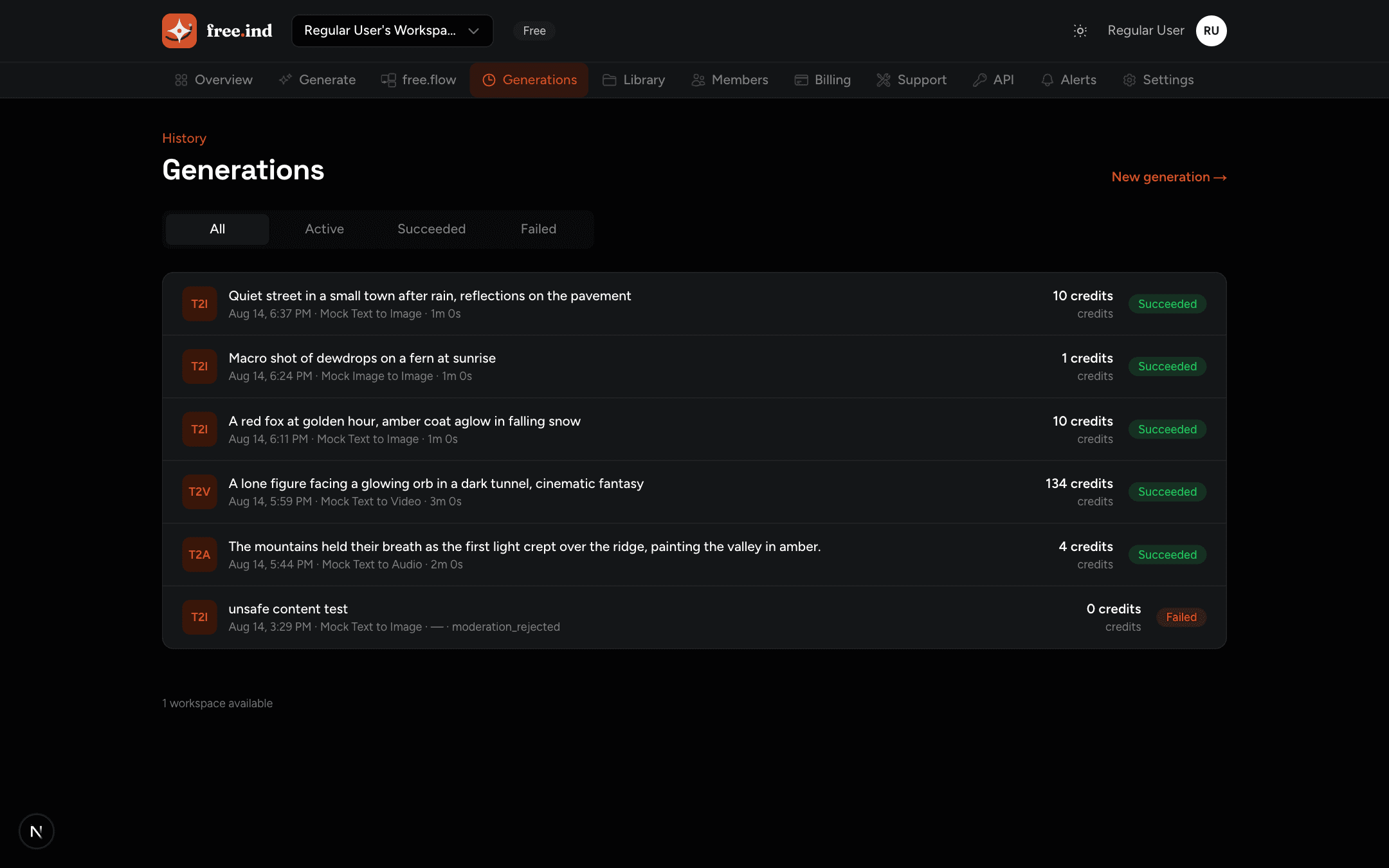
After login you land on the workspace Overview. It shows your three key numbers — credits, wallet balance, and usage — plus your recent generations with status, prompt, and cost per job.
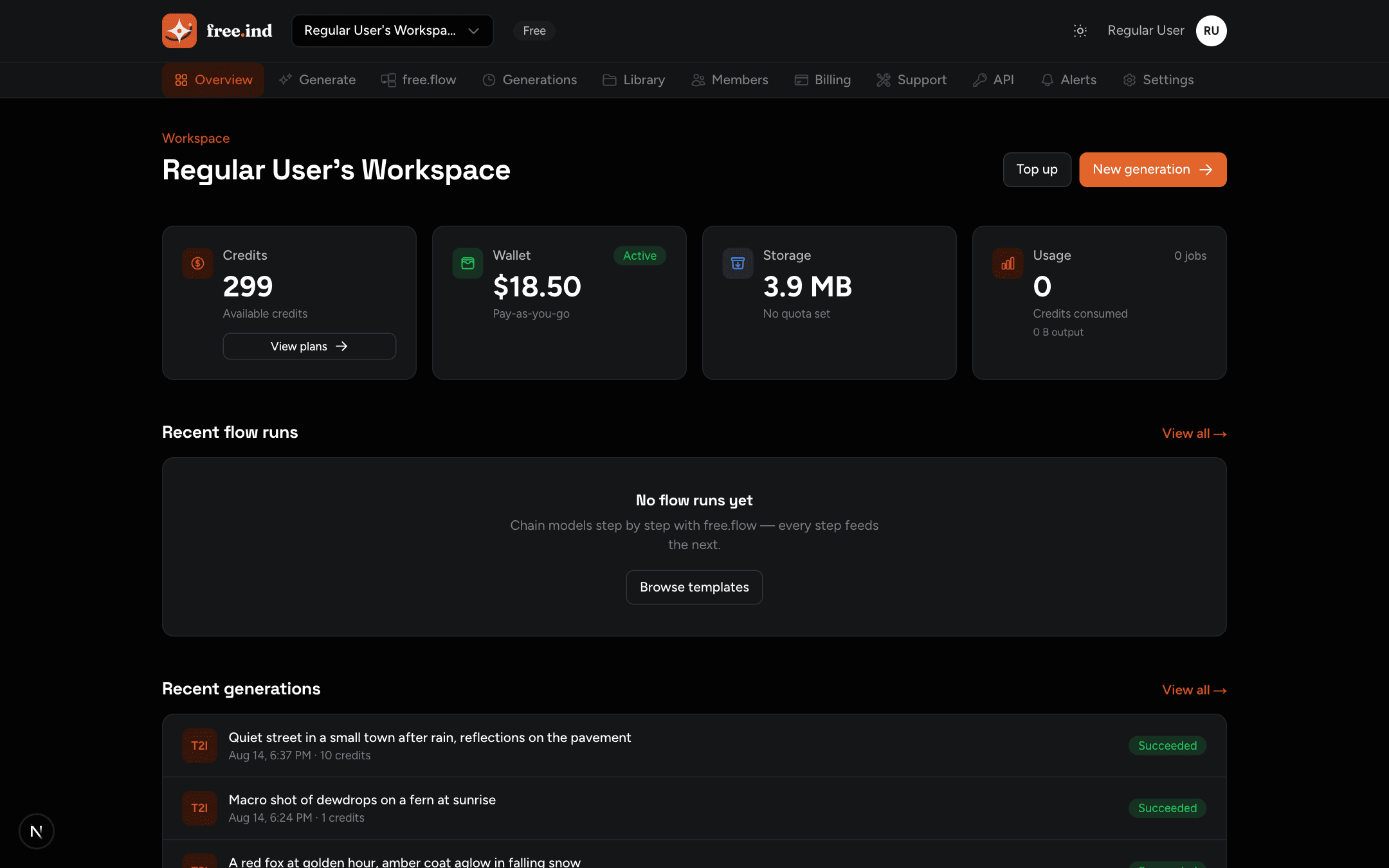
The Generate page is the studio. Pick a mode (text-to-text, text-to-image, text-to-video, text-to-audio, image-to-image, image-to-video, video-to-video), choose a model from the catalog — each shows its credit cost and supported capabilities — then write your prompt. The estimated cost updates live.
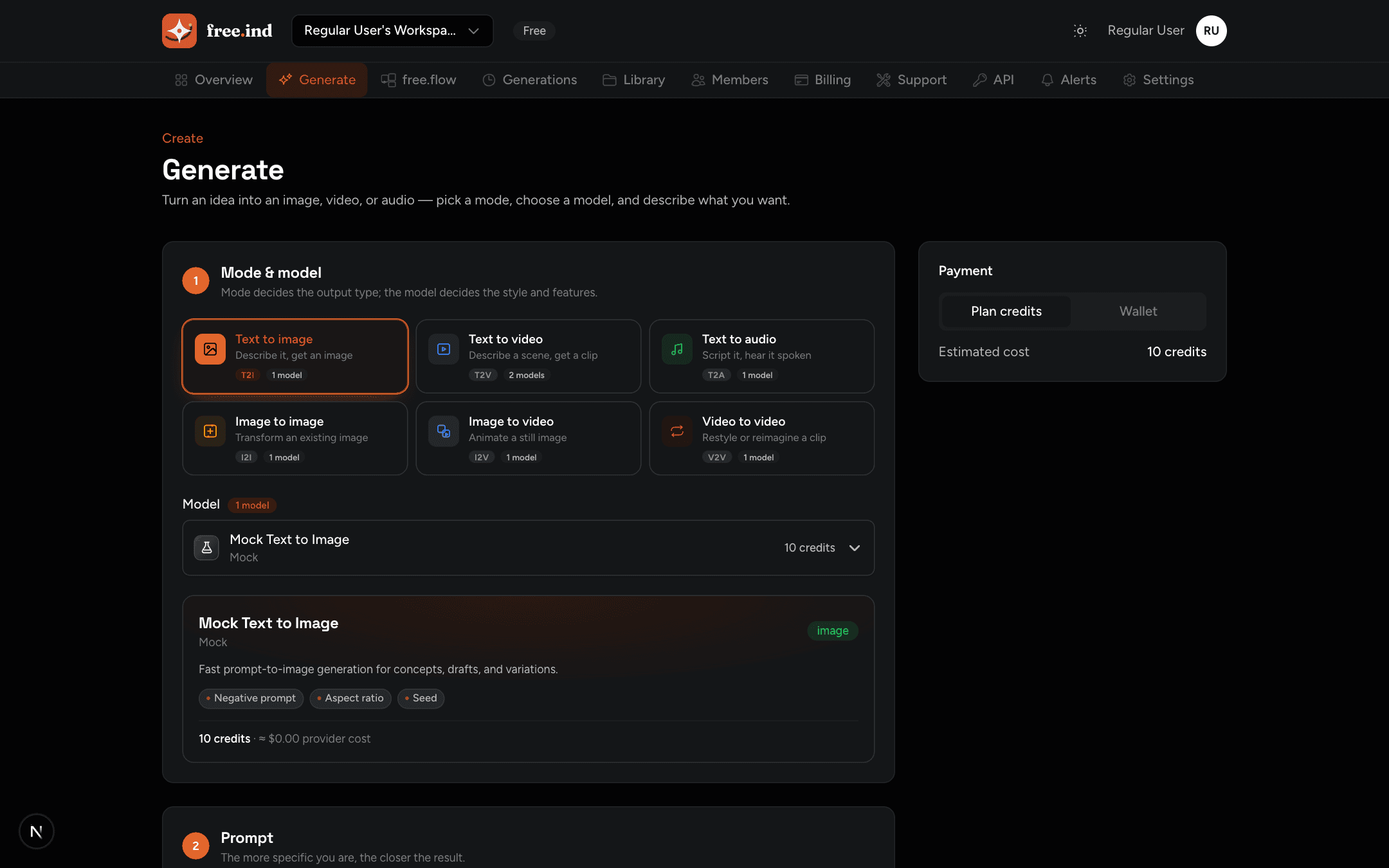
Every generated asset lands in the Library — images, videos, and audio in one grid. Filter by type, search, and star your favorites. Each asset shows its dimensions or duration and can be downloaded.
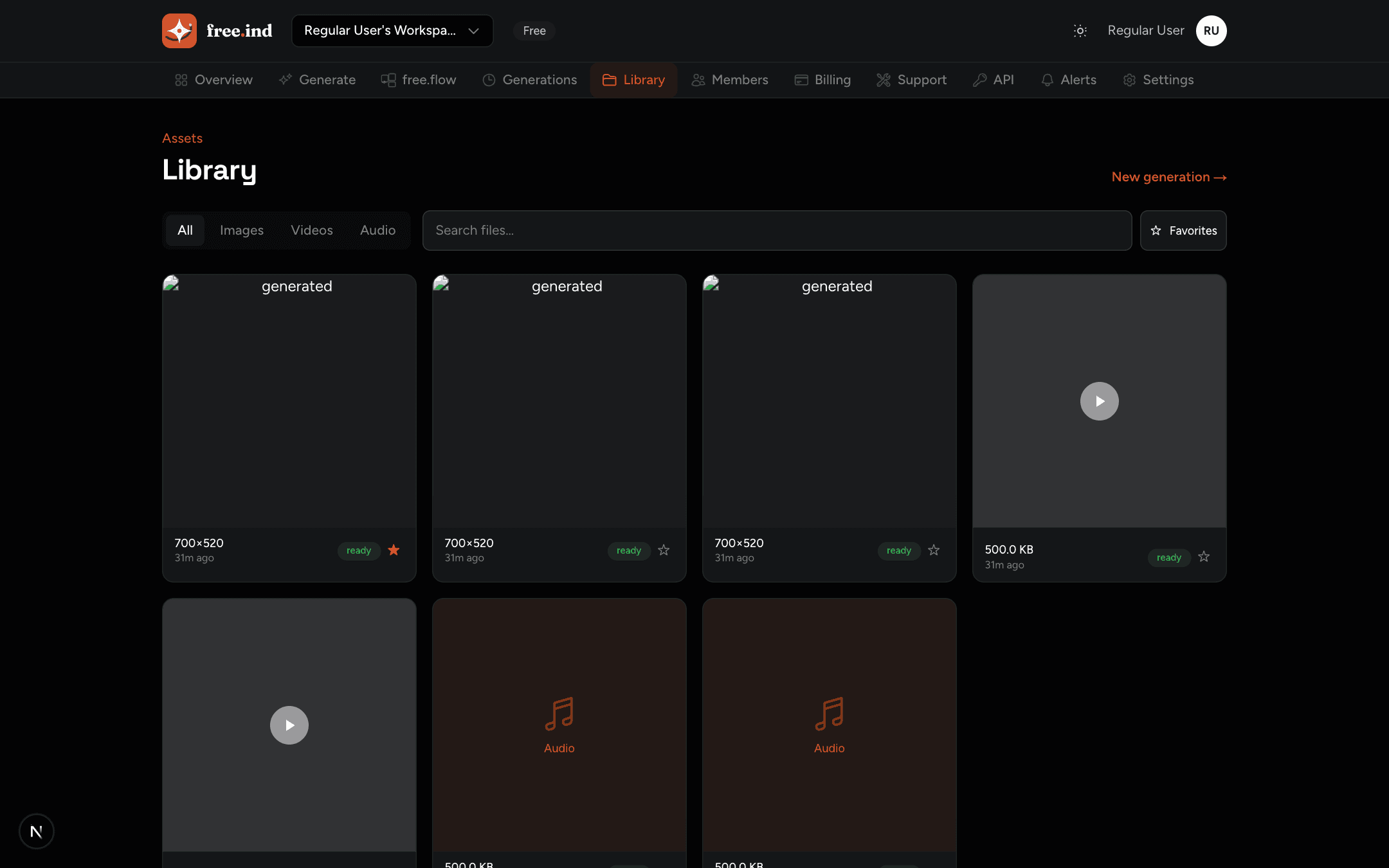
Generations is the full job history — every generation with its model, prompt, credits used, and status. Filter by state (Active, Succeeded, Failed) to audit spend or troubleshoot a failure.
The API Keys page (under Developers) is where programmatic access starts. Create scoped keys — the full key is shown exactly once — and register webhook endpoints that receive signed terminal-state events.
generations.write, generations.read).generation.completed, failed, cancelled, expired) and a callback URL.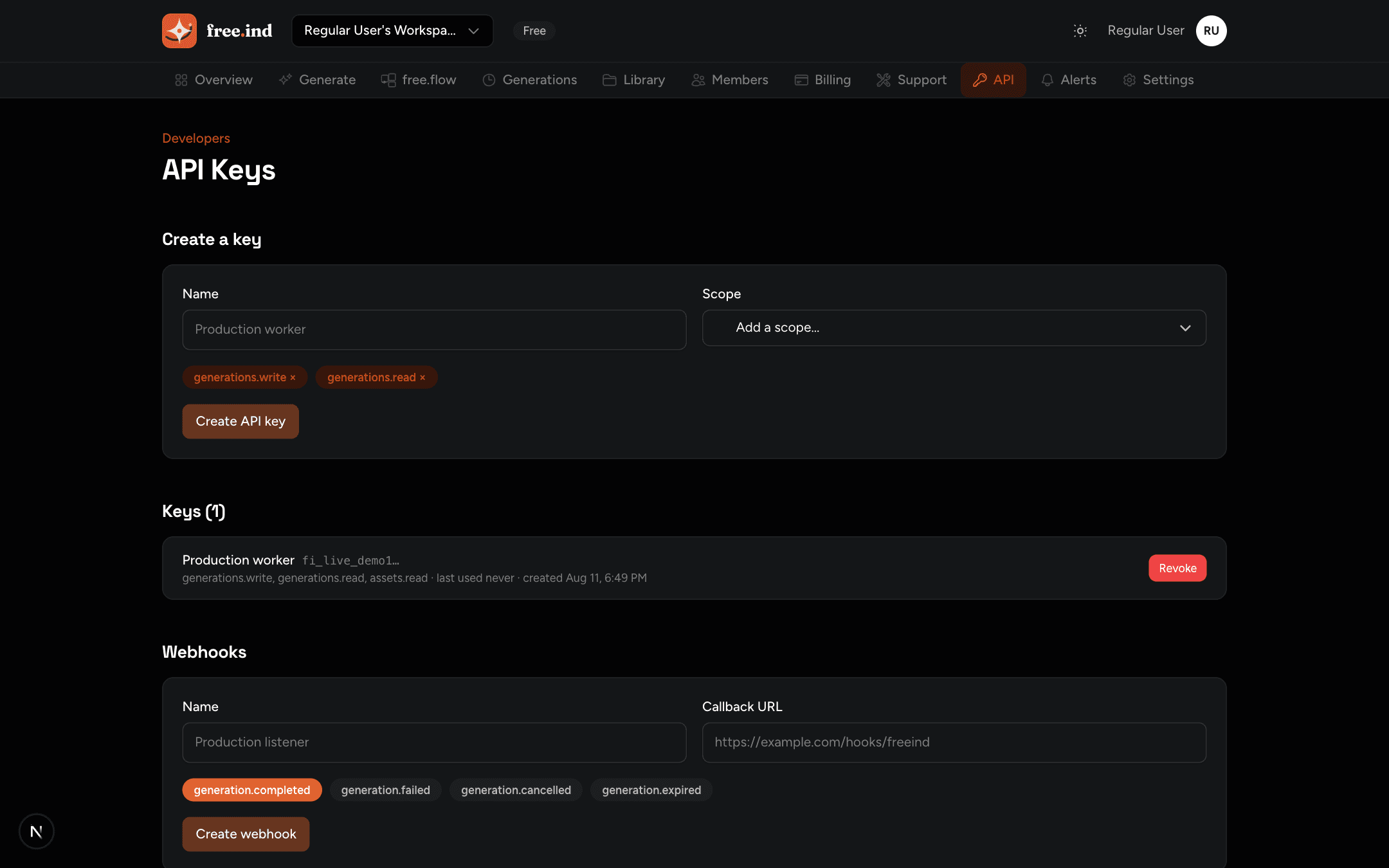
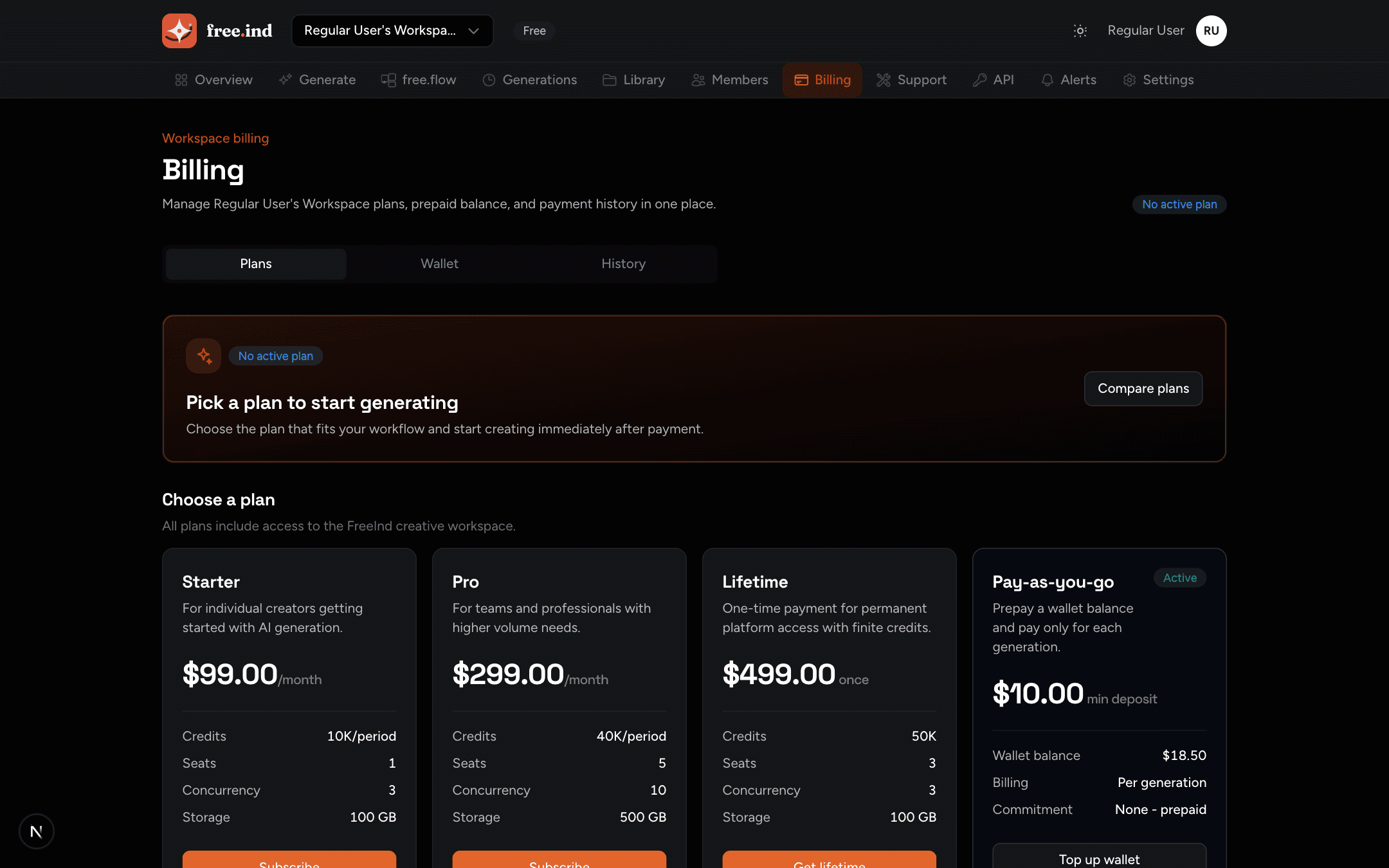
Billing shows the plan catalog — Mini, Growth, Starter, Pro, and Lifetime — alongside the pay-as-you-go wallet. Subscribe to a plan for monthly credits and seats, or prepay the wallet for per-generation pricing with no commitment.
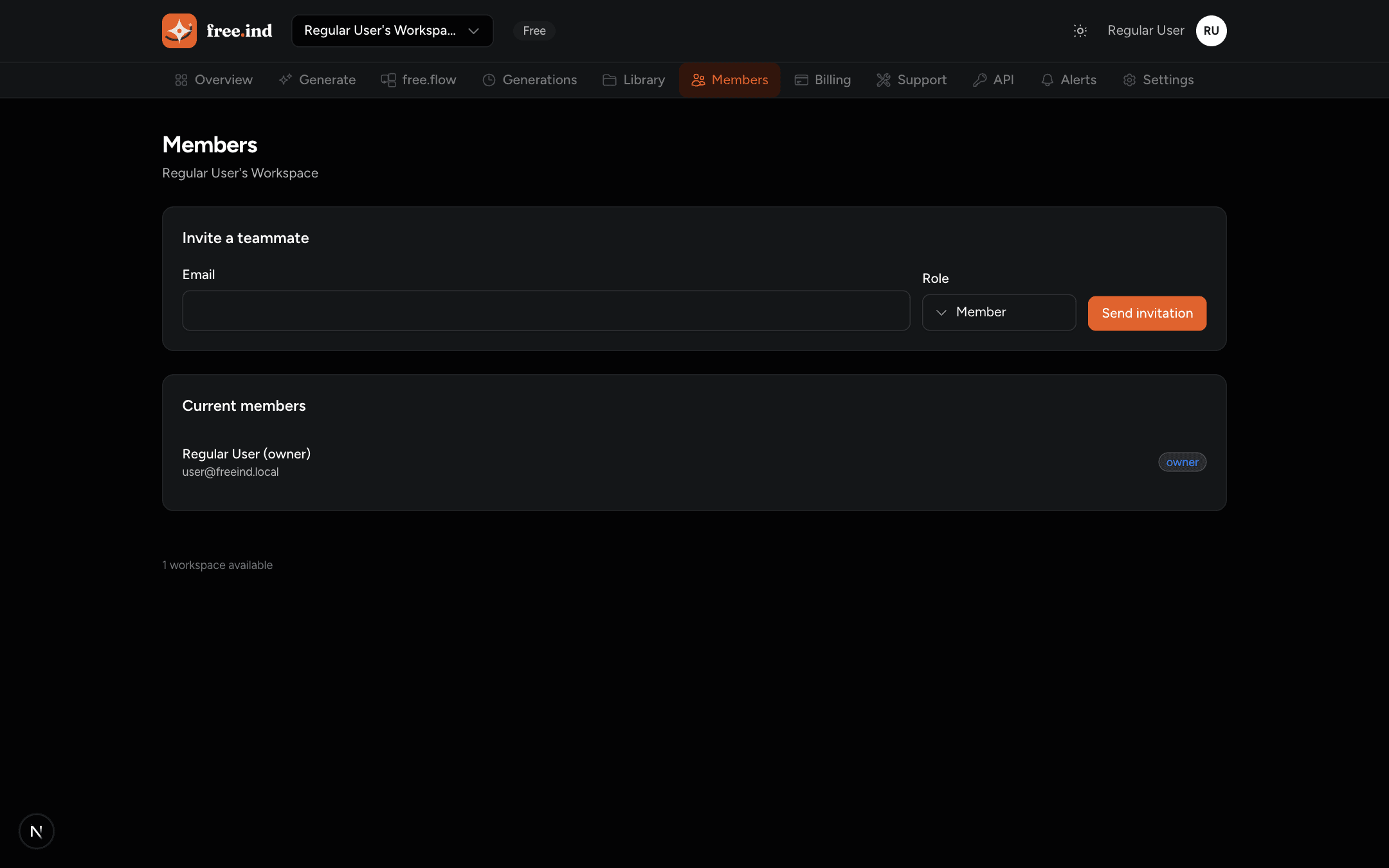
The Members page manages who can use the workspace. Invite teammates by email; they share the workspace's credits, wallet, keys, and assets. Roles control what each member can do.
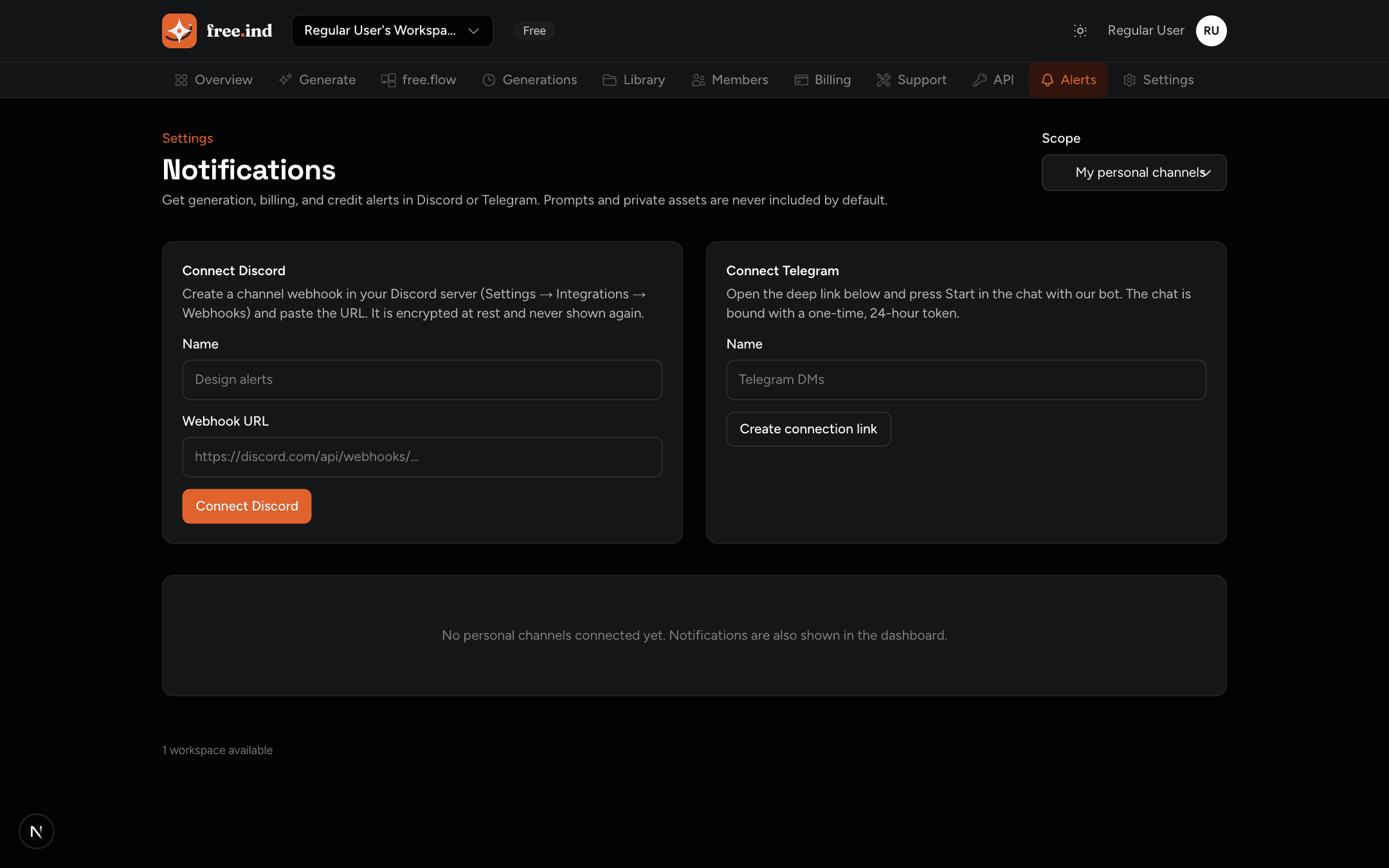
Notifications wires generation events to Discord or Telegram. Discord uses a standard webhook URL; Telegram uses a one-time connection link with the FreeInd bot. Choose the scope (personal or workspace) and toggle which events arrive.
Ready to build? Start with the quickstart to create an API key and run your first generation, or read the API reference for every endpoint. The billing guide explains credits, plans, and the wallet in depth.